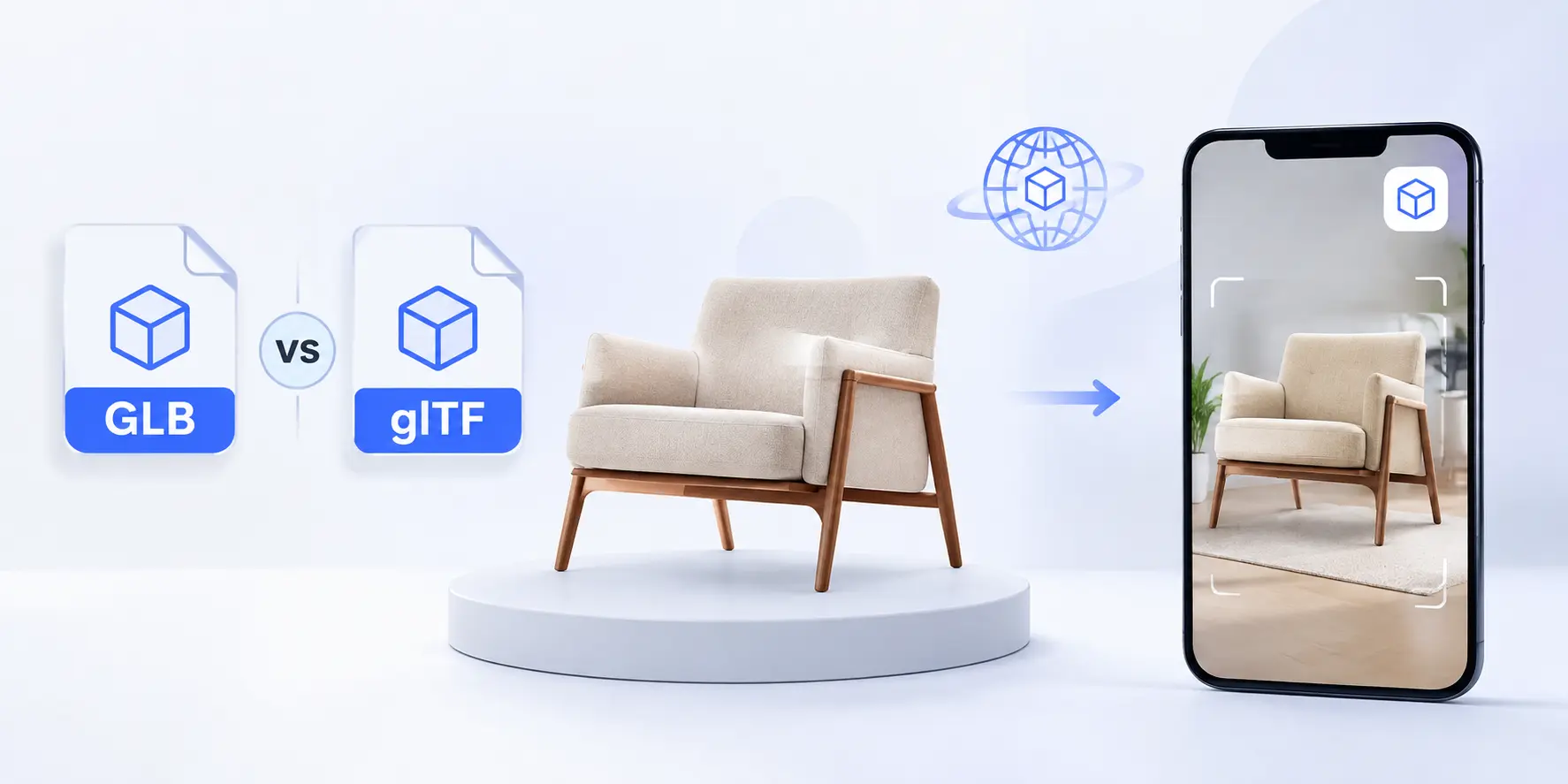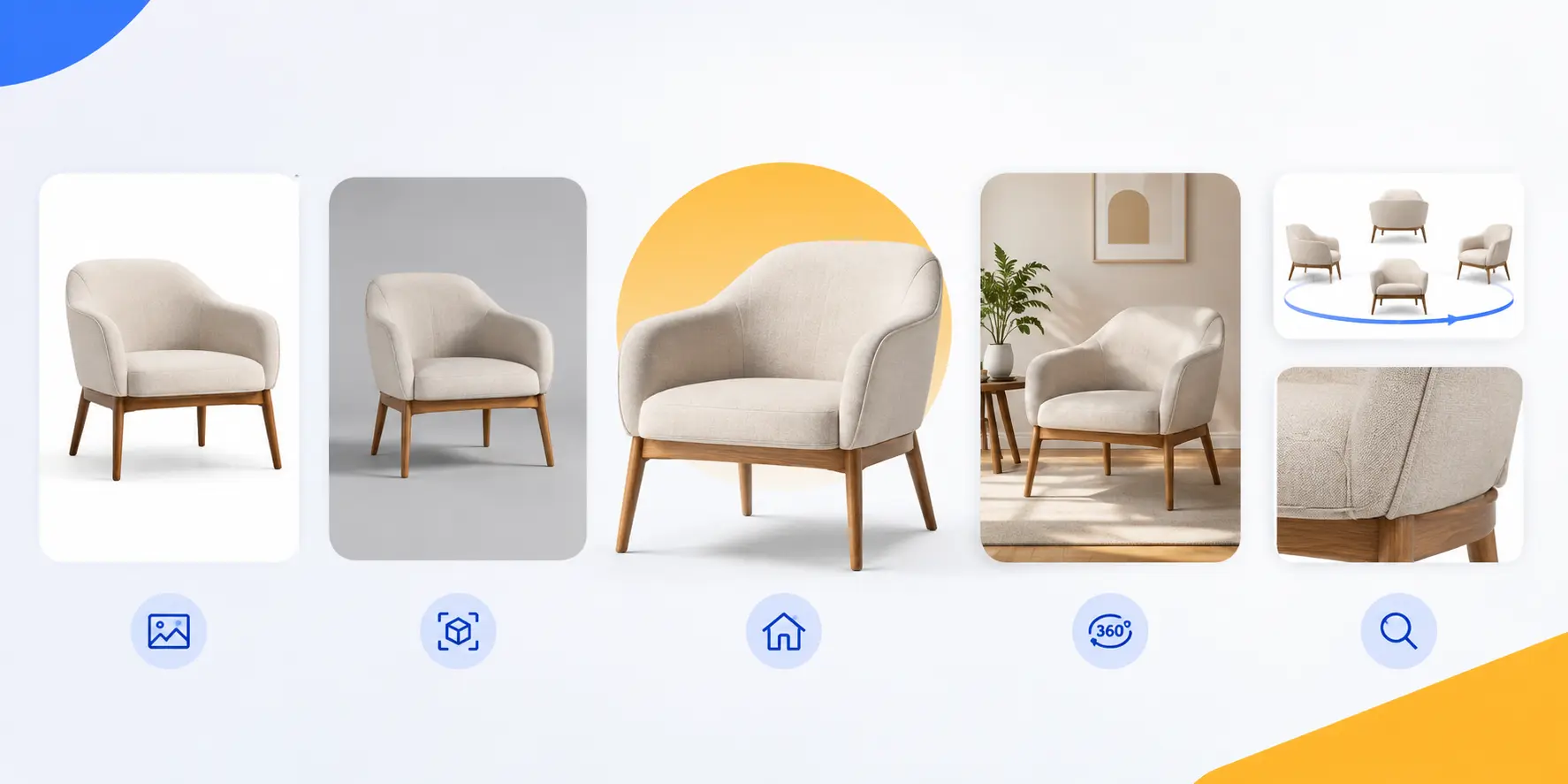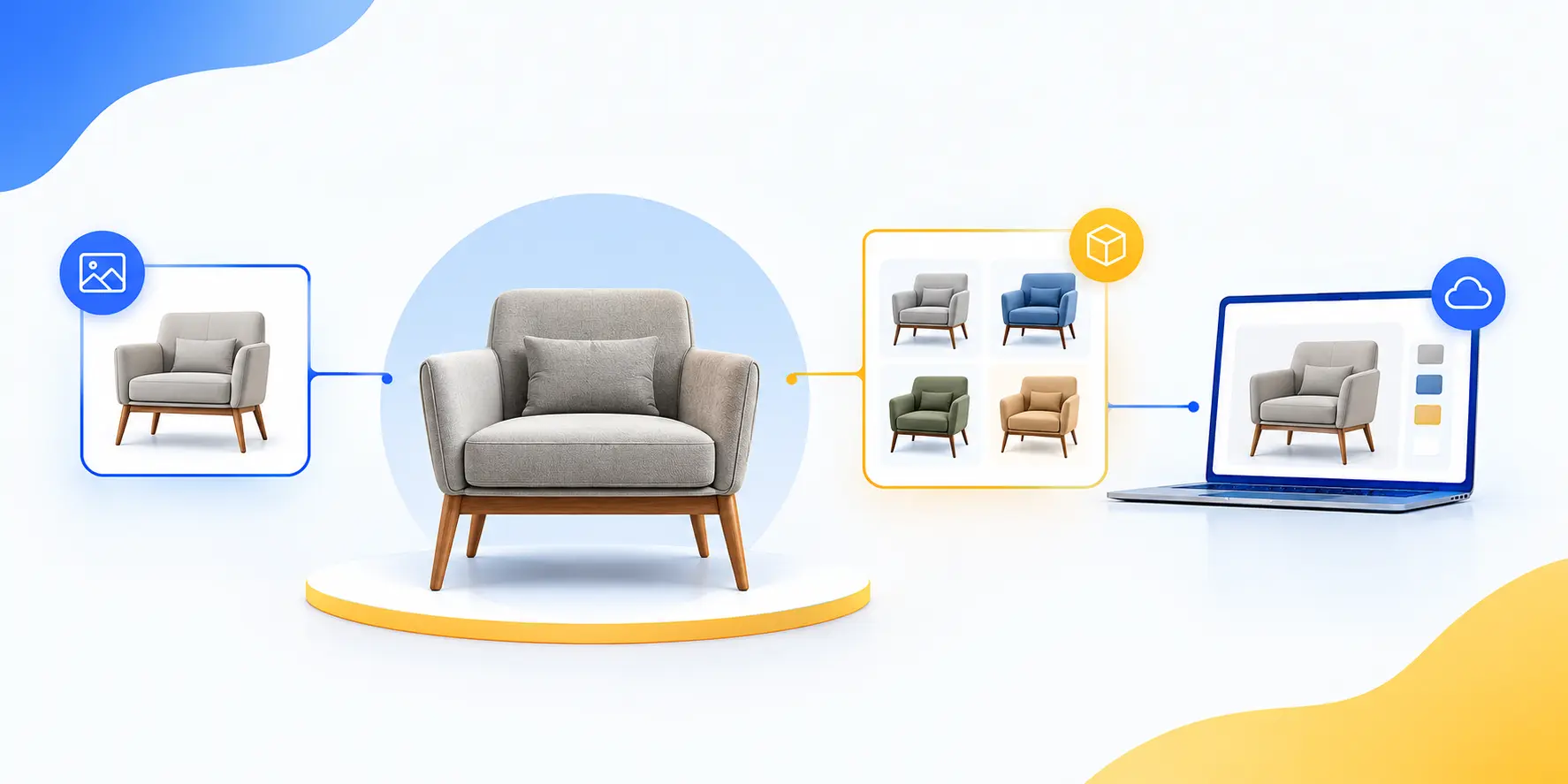


Furniture AR works best when the 3D model is built for real-world scale, mobile performance, correct materials, and the target AR platform.
For most furniture brands, the practical setup is simple:
USDZ for Apple Quick Look + GLB/glTF for Android Scene Viewer.
The same base furniture model can usually be prepared for both formats, then optimized and tested separately.
What Makes a Furniture Model AR-Ready?
An AR-ready furniture model is more than a normal 3D model.
It should have:
- Correct real-world dimensions
- Clean and optimized geometry
- Proper UVs
- Mobile-friendly textures
- PBR materials
- Correct origin and orientation
- Low enough polygon and material counts
- AR-compatible file format
- Fast loading performance
The goal is simple: the furniture should look realistic without making the customer’s phone work too hard.
USDZ vs glTF vs GLB: Which Format Should You Use?
USDZ is the main format for Apple AR Quick Look.
glTF is an open 3D format designed for efficient delivery and rendering.
GLB is the binary version of glTF. It can package the model, materials, and textures into one file, making it convenient for websites and Android AR.
For furniture eCommerce:
| Format | Best Use |
| USDZ | Apple Quick Look |
| GLB | Android AR and web 3D |
| glTF | Web 3D when separate assets are useful |
Google Scene Viewer supports glTF 2.0 and GLB.
Apple AR Quick Look: USDZ Requirements for Furniture
Apple AR Quick Look lets users place 3D objects in their real environment.
Apple supports .usdz and .reality assets for Quick Look. On a website, you can launch Quick Look with an ‘a’ element using rel=”ar” and a USDZ file.
Basic implementation:
<a rel=”ar” href=”/models/sofa.usdz”>
<img src=”/images/sofa.jpg” alt=”View sofa in your space”>
</a>
For furniture, test:
- Correct scale
- Correct floor placement
- Material appearance
- Texture quality
- Lighting
- Loading speed
- AR placement on supported Apple devices
Quick Look supports moving and scaling objects with touch gestures.
Google Scene Viewer: GLB/glTF Requirements
Google Scene Viewer is designed for Android AR and supports glTF 2.0 and GLB. It can be launched from websites or apps.
Google’s current recommendations include:
- 30,000–50,000 triangles: ideal target
- 100,000 triangles: recommended upper limit
- 10 materials: recommended maximum
- 2,048 × 2,048: maximum recommended texture resolution
- 10 MB: recommended model size
- 1 UV set per mesh
- 1 mesh per material
- 1 unit = 1 meter
Larger or heavier models can reduce the user experience on mobile devices.
How to Prepare Furniture Models for AR
Start with a clean production model.
Step 1: Clean the geometry
Remove:
- Hidden geometry
- Unused objects
- Internal faces
- Duplicate meshes
- Excessive subdivisions
Step 2: Optimize the mesh
Keep important furniture details while reducing unnecessary polygons.
Step 3: Create clean UVs
Make sure textures do not stretch, overlap incorrectly, or waste texture space.
Step 4: Optimize materials
Combine similar materials where possible.
Step 5: Export platform versions
Create:
GLB → Android / web AR
USDZ → Apple Quick Look
Step 6: Test on real devices
Always test the final files on actual phones, not only inside 3D software.
AR Furniture Model Specifications: Polygons, Materials, Textures & File Size
There is no single polygon count that works for every sofa, chair, table, or cabinet.
The right target depends on model complexity.
A practical target for Scene Viewer is 30K–50K triangles, while 100K is the recommended upper limit. Keep materials as low as possible and use textures up to 2048 × 2048 where needed.
For mobile AR, prioritize:
Geometry → Materials → Textures → File Size → Loading Speed
Do not add detail simply because the desktop model can handle it.
PBR Materials and Textures for AR Furniture
PBR materials help furniture look realistic under different lighting conditions.
Common maps include:
- Base Color / Albedo
- Roughness
- Metallic
- Normal
- Ambient Occlusion
Use them only when they improve the result.
For example:
Wood: base color + roughness + normal
Fabric: base color + roughness + subtle normal
Metal: base color + metallic + roughness
Leather: base color + roughness + subtle normal
Avoid excessive texture resolution. A 4K texture is not automatically better for mobile AR.
Scene Viewer uses PBR materials and supports PNG and JPG textures, with JPG preferred when transparency is not needed because it can reduce file size.
Scale, Dimensions, UVs and Placement
Furniture AR must use real-world dimensions.
If a sofa is actually 2.2 meters wide, the AR model should represent that same size.
Google’s Scene Viewer uses a right-handed coordinate system and defines 1 unit as 1 meter. The asset’s front should face +Z.
Check:
- Width
- Height
- Depth
- Floor position
- Origin point
- Front direction
- UV mapping
The wrong scale creates an immediate trust problem.
A sofa that appears twice its real size can make customers question the entire product listing.
How to Optimize Furniture Models for Mobile AR
Mobile devices have less processing power than desktop workstations.
To improve performance:
- Reduce unnecessary polygons
- Combine meshes where practical
- Reduce material count
- Use compressed textures
- Avoid oversized textures
- Remove hidden geometry
- Keep file sizes small
- Use efficient GLB compression when appropriate
- Test on mid-range phones
The goal is not the smallest possible file.
The goal is the best visual quality at the lowest practical performance cost.
Apple AR Quick Look: USDZ Texture Maps for Furniture
Apple AR Quick Look supports PBR materials for realistic furniture rendering. Common texture maps include Base Color, Normal, Roughness, Metallic, and Ambient Occlusion (AO).
For USDZ furniture assets, you can combine Occlusion, Roughness, and Metallic (ORM) into the RGB channels of a single texture:
R = Occlusion
G = Roughness
B = Metallic
This reduces the number of separate texture files the model needs and can help make the asset more efficient for mobile AR.
For example:
Wood: Base Color + ORM + Normal
Fabric: Base Color + ORM + Normal
Metal: Base Color + ORM + Normal
Use only the maps that improve the material. The goal is to maintain realistic furniture materials while keeping the USDZ asset lightweight and mobile-friendly.
Draco Compression for GLB Furniture Models
Draco geometry compression is a useful way to reduce the geometry data inside GLB/glTF furniture models.
It compresses mesh data such as the following:
- Vertex positions
- Normals
- Texture coordinates
- Other geometry attributes
This can reduce the GLB download size and help AR furniture models load faster on mobile devices.
A practical workflow is the following:
Optimize geometry → Apply Draco compression → Export GLB → Validate → Test on mobile
Draco mainly compresses geometry, not textures. So if your GLB is still too large, optimize texture resolution, texture formats, and material count separately.
For furniture AR, the goal is not simply the smallest file. Aim for the best balance between visual quality, file size, and mobile performance.
How to Add AR Furniture to an eCommerce Website
A typical furniture AR workflow looks like this:
3D Furniture Model → GLB + USDZ → Website → AR Button → Customer’s Room
A website <model-viewer> can provide a 3D viewer and connect to AR modes such as Scene Viewer and Quick Look.
Example:
<model-viewer
src=”/models/sofa.glb”
ios-src=”/models/sofa.usdz”
ar
ar-modes=”webxr scene-viewer quick-look”
camera-controls
alt=”3D model of a sofa”>
</model-viewer>
This lets customers inspect the product in 3D and, on supported devices, move it into their environment.
iOS vs Android: Building a Cross-Platform AR Furniture Workflow
You do not need to build two completely different furniture models.
Start with one optimized master model.
Then create:
Master 3D Model
↓
GLB → Android / Web
USDZ → iPhone / iPad
<model-viewer> can support scene-viewer, quick-look, and webxr AR modes.
This creates a practical cross-platform workflow while allowing each platform’s file to be optimized separately.
Common AR Furniture Model Problems and Fixes
The model appears too large
Cause: Incorrect scale.
Fix: Verify dimensions and use the correct unit conversion.
The model appears too small
Cause: Incorrect scene scale or export settings.
Fix: Check the original dimensions and glTF unit scale.
Furniture floats above the floor
Cause: Incorrect origin or model positioning.
Fix: Place the bottom of the furniture correctly on the ground plane.
Textures are missing
Cause: Broken texture paths or unsupported assets.
Fix: Check texture references and export the final package correctly.
The model loads slowly
Cause: Too many polygons, materials, textures, or large files.
Fix: Optimize geometry and textures.
Materials look different
Cause: Different lighting and material handling between renderers.
Fix: Test PBR values under the target AR environment.
Scene Viewer rejects the model
Cause: Unsupported format, excessive triangles, materials, texture resolution, UVs, or file size.
Fix: Run the model through validation and fix the reported limits. Google documents specific validation errors for these issues.
FAQ
Q: What is the best 3D format for furniture AR?
A: There is no single format for every platform. USDZ is the practical choice for Apple Quick Look, while GLB/glTF is used for Google Scene Viewer and web 3D.
Q: USDZ vs GLB: Which should I use?
A: Use USDZ for Apple and GLB for Android/web AR. For a cross-platform furniture store, preparing both is usually the best approach.
Q: What is the ideal GLB file size for furniture AR?
A: For Scene Viewer, Google recommends keeping the model around 10 MB or less. Smaller files generally provide a better mobile experience.
Q: How many polygons should an AR furniture model have?
A: For Scene Viewer, 30,000–50,000 triangles is an ideal target, while 100,000 is the recommended upper limit.
Q: What texture resolution should I use?
A: For Scene Viewer, 2048 × 2048 is the recommended maximum. Use lower resolutions when they provide enough visual quality.
Q: Can the same furniture model work on iPhone and Android?
A: Yes. Use the same master model as the source, then create optimized USDZ and GLB versions for each platform.
Q: What is the difference between Quick Look and Scene Viewer?
A: Quick Look is Apple’s AR experience for supported Apple devices and uses USDZ or Reality files.
Scene Viewer is Google’s AR experience for supported Android devices and uses glTF/GLB.
Q: How do I make a furniture model AR-ready?
A: Use accurate dimensions, clean geometry, optimized UVs, PBR materials, mobile-friendly textures, correct placement, and platform-compatible exports.
Q: Why is my AR furniture model loading slowly?
A: The most common causes are large file size, high polygon count, too many materials, and oversized textures.
Q: How do I maintain the correct furniture scale in AR?
A: Build the model using real-world dimensions and verify that the exported file follows the target platform’s scale rules. Scene Viewer uses 1 unit = 1 meter.
Final Takeaway
An AR-ready furniture model should be accurate, lightweight, realistic, and platform-compatible.
For most furniture brands, the workflow is straightforward:
Create one high-quality master model → optimize it → export GLB + USDZ → test on iOS and Android → add AR to the product page.
The best AR model is not the model with the most polygons or the biggest textures.
It is the model that gives customers realistic furniture at the correct size, with fast and reliable AR performance. Get a Free 3D AR Model Sample for Your Store